Tracking Setup
Google Consent Mode v2: Setup Guide for GTM and GA4
Google Consent Mode v2 setup is the part of a GTM build that most teams treat as a checkbox and then discover, weeks later, that Google Ads has quietly stopped filling audiences in the European Economic Area (EEA). Consent mode changes how your Google tags behave based on what a visitor agrees to on your consent banner: it does not collect consent and does not show a banner, but it decides whether Google Analytics and Google Ads get cookies, cookieless pings, or nothing at all. If you run Google Ads or GA4 on a site with EEA visitors, Google has enforced this since March 2024 as a condition for remarketing and ads measurement. This guide walks through the Google Tag Manager setup end to end: which mode to choose, how to wire the default and update calls, how to test consent mode v2 in Tag Assistant, and what to check on a website you did not build.
What Consent Mode v2 changes for GA4 and Google Ads
Without consent mode you get two bad options: fire every tag and risk a GDPR complaint, or block every tag and lose the conversion data. Consent Mode v2 sits between them — when a user declines, consent-aware Google tags stay on the page but drop into a cookieless mode, and Google models what it can no longer observe.
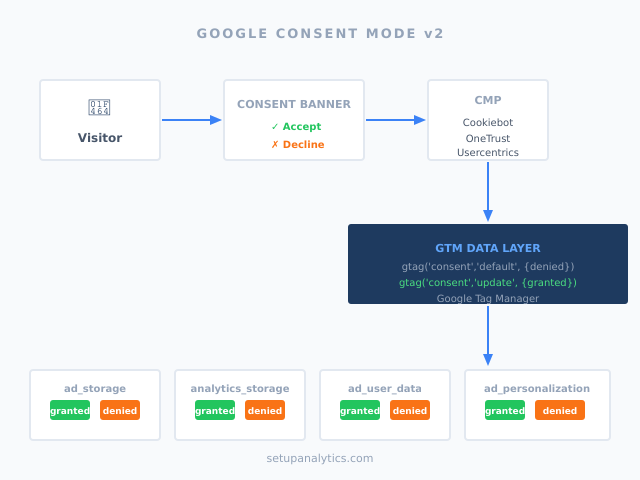
What changed from v1 to v2
Consent Mode v1 used two parameters: ad_storage and analytics_storage, covering ad cookies and analytics cookies respectively. In November 2023 Google added two more, and the official consent mode setup guide now lists all four as the minimum: ad_user_data and ad_personalization.
The new pair controls whether user data can be sent to Google for advertising at all, and whether ads may be personalized. They exist because of the EU Digital Markets Act and Google’s stricter enforcement of its EU user consent policy. If you want the plain-language definition first, the Consent Mode v2 entry in our compliance glossary covers what it is and is not; this article is about wiring it.
What happens if you skip it
Google’s EEA consent mode update notice says advertisers must share consent signals to keep using measurement, ad personalization and remarketing for EEA users. Without them, remarketing audiences stop filling with EEA users (GA4 states only users outside the EEA are included in audiences shared with linked ad products), Smart Bidding loses EEA conversion signal, and the GA4 property starts warning about missing consent signals in Admin. The fix is not complicated, but the order of operations matters more than in a normal tag deployment.
How Google Consent Mode v2 works
The mechanism runs on two commands: a default consent call that fires before any user interaction, and an update consent call that fires after the user makes a choice on the consent banner. Everything else — CMP templates, triggers, tag settings — exists to get those two commands right, in the right order.
The four consent parameters
Every implementation needs to handle all four parameters:
| Parameter | Controls | Typical EEA default |
|---|---|---|
ad_storage |
Cookies used for advertising (Google Ads, Floodlight, remarketing) | denied |
analytics_storage |
Cookies used for analytics measurement (GA4 session and user cookies) | denied |
ad_user_data |
Whether user data can be sent to Google for advertising purposes | denied |
ad_personalization |
Whether ads can be personalized for this user | denied |
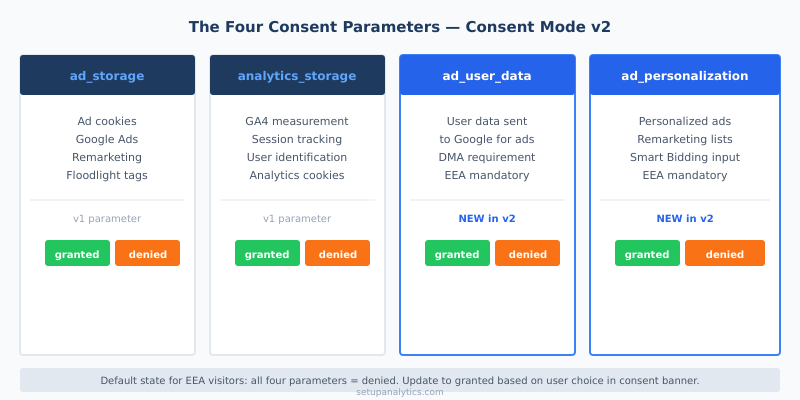
Google also defines optional types (functionality_storage, personalization_storage, security_storage) that most CMP templates expose; they matter for your own tags, not for the Google tags’ built-in checks.
Default consent state and update calls
The two calls work in sequence. First, before the page loads any measurement tag, you set the default state:
gtag('consent', 'default', {
  'ad_storage': 'denied',
  'analytics_storage': 'denied',
  'ad_user_data': 'denied',
  'ad_personalization': 'denied',
  'wait_for_update': 500
});
After the user interacts with the consent banner, the CMP sends the update:
gtag('consent', 'update', {
  'ad_storage': 'granted',
  'analytics_storage': 'granted',
  'ad_user_data': 'granted',
  'ad_personalization': 'granted'
});
In practice the update only passes granted for the parameters the user accepted: someone who accepts analytics but rejects advertising ends up with analytics_storage: 'granted' and ad_storage: 'denied'. Consent mode itself remembers nothing between pages — your CMP stores the choice, usually in a first-party cookie, and replays the update on every later page load. Google’s docs are explicit that the update must happen on the page where the user clicks, before any page transition.
What changes when consent is denied?
When analytics_storage is denied, GA4 sets no cookies and, in advanced mode, sends cookieless pings — events with coarse dimensions and no client ID, used only for behavioral and conversion modeling. When ad_storage is denied, no advertising cookies are written or read, requests go through a domain that carries no third-party cookies, and Google signals stops accumulating data. When consent is granted, everything works as if consent mode were not there: cookies, full URL with gclid/dclid, IP-based location.
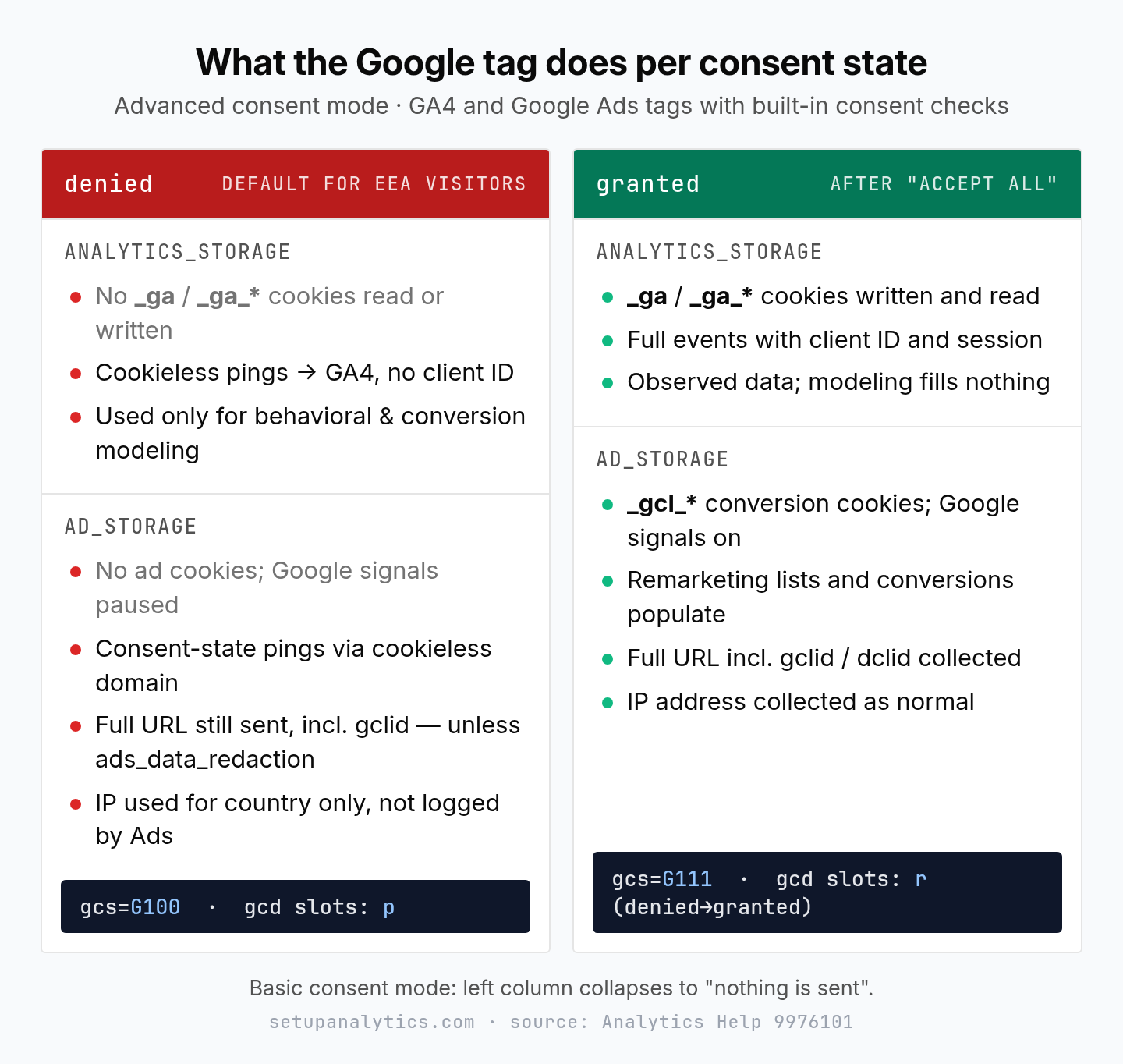
The per-state detail is in the consent mode behavior reference in Analytics Help. Two things from that page trip people up: the full page URL, including gclid, is still collected under ad_storage: denied unless you also turn on ads data redaction (below), and IP addresses are still used to derive country in the denied state.
Advanced vs Basic Consent Mode — which should you pick?
Advanced consent mode loads the Google tags before the banner is answered and lets them send cookieless pings when consent is denied; basic consent mode blocks the tags entirely until consent is granted. Pick advanced if your CMP can push consent state to the data layer before GTM fires and your legal team accepts them; pick basic if either of those is not true. Decide this before you touch GTM, because it changes what data Google can recover.
When Advanced is the right call
Advanced consent mode is the right call when your CMP can push consent state to the data layer in real time, before the page fires any tracking tag — Cookiebot, OneTrust, Usercentrics and Consentmanager all do that through their GTM templates. It is also the only version that delivers advertiser-specific conversion modeling and GA4 behavioral modeling; how much comes back depends on traffic volume and consent rate, and Google does not publish a fixed recovery rate. I would treat any vendor slide that shows one as marketing.
When Basic is your only option
Basic consent mode is simpler: all Google tags are blocked until the user grants consent, then load and fire normally. If consent is denied, nothing is sent — no cookieless pings, not even the consent status. Google Ads still applies conversion modeling, but on a general model built from high-level features (browser type, time of day) rather than your own data, and GA4 gets no modeling at all.
| Factor | Advanced consent mode | Basic consent mode |
|---|---|---|
| Tags fire on denial | Yes (cookieless pings) | No (blocked entirely) |
| Conversion modeling in Google Ads | Advertiser-specific model | General model only |
| Behavioral modeling in GA4 | Yes | No |
| Data layer integration | Required before GTM loads | Not required |
| CMP requirement | Must emit real-time signals | Any CMP that can block scripts |
| Recommended for | Google Ads advertisers with EEA traffic | Analytics-only setups, strict legal positions |
Basic is also the answer if your DPO has decided that cookieless pings themselves need consent. What separates the two modes is how much measurement survives a refusal, not how much setup they need — basic gives up the modeled conversions and the GA4 behavioral modeling, and that is the whole price. Whether the cookieless pings need consent in the first place is the unsettled part, and the FAQ below covers where that question stands.
Setting up Consent Mode v2 in Google Tag Manager
The setup assumes you have already finished adding the GA4 tracking code and have a Google Tag Manager container running. Consent mode sits on top of the tag structure you already have; you are adding one consent tag, one trigger and a handful of settings.
Start with a CMP that emits all four signals
Your CMP collects the user’s choice, stores it, and hands it to GTM via the data layer. Do you need a Google-certified CMP? Not for GA4 and Google Ads on your own site — Google’s docs allow a self-built banner with a manual consent mode implementation. The certification requirement applies to publishers monetizing with AdSense, Ad Manager or AdMob, where a Google-certified, TCF-integrated CMP has been mandatory for EEA/UK personalized ads since January 2024. The certified CMP requirement and the underlying cookie banner rules by country are covered separately in the compliance atlas.
A certified CMP is still the low-friction route for advertisers, because the templates already handle default, update and persistence. If you use a custom or uncertified CMP, verify it pushes all four parameters to the data layer before the GTM snippet fires. That is the requirement for advanced mode; without it you are in basic mode whether you meant to be or not.
Use the Consent Initialization trigger
Every web container ships with a Consent Initialization – All Pages trigger. You do not create it, but you do need to use it: it fires before every other trigger on the page, including Initialization – All Pages, which guarantees the default consent state exists before any tag tries to fire. It is reserved for tags that set or update consent — a CMP template tag or your own consent default tag — not for tags that merely need to fire early.
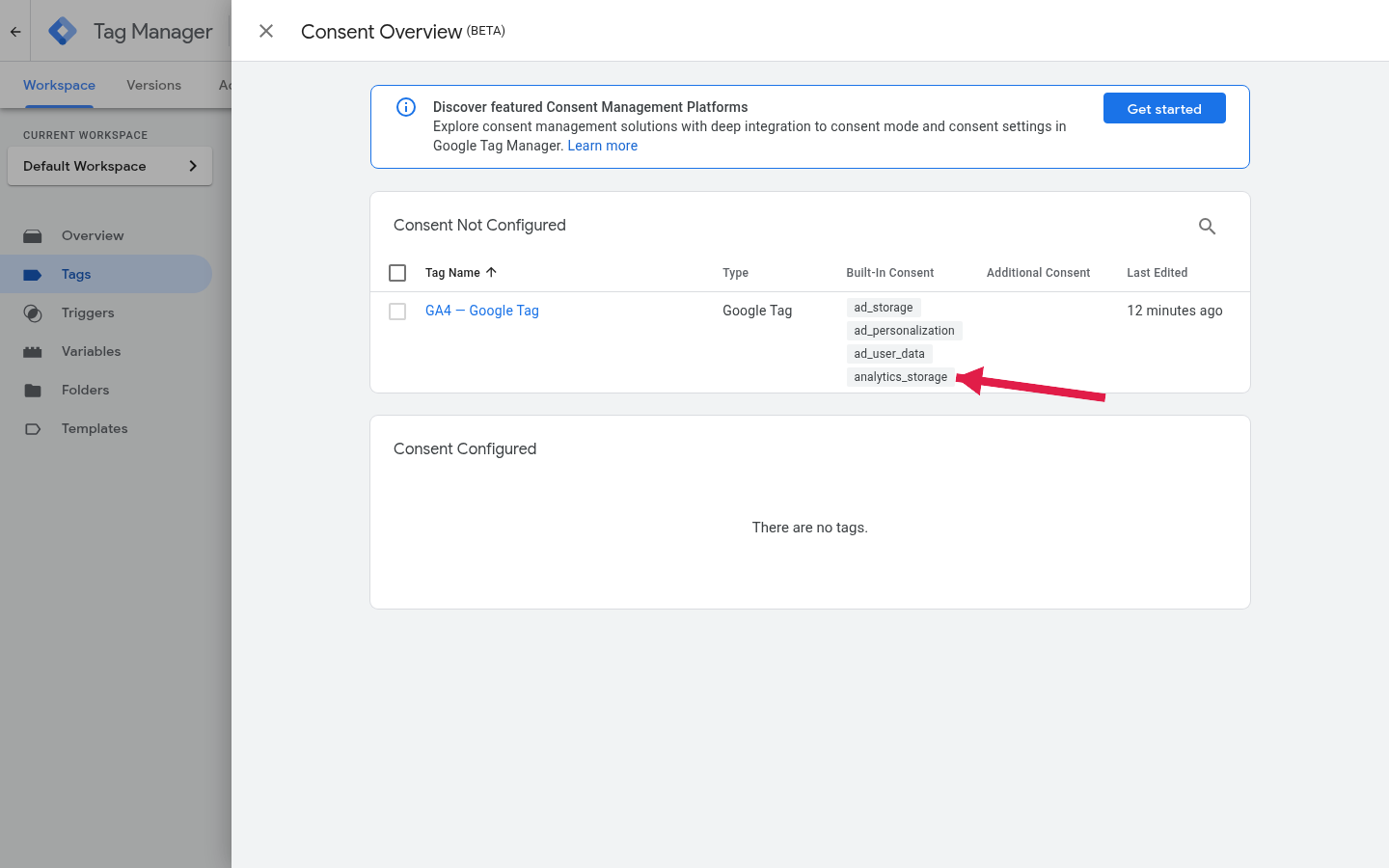
While you are in the container, turn on the Consent Overview: Admin → Container Settings → Additional Settings → Enable consent overview. It adds a shield icon to the Tags toolbar and lists every tag’s built-in and additional consent checks — the fastest way to spot an ad pixel with no consent settings at all.
Add consent checks to your Google tags
Google tags for GA4, Google Ads (conversion tracking and remarketing), Floodlight and the Conversion Linker have built-in consent checks: they read the consent state and adjust behavior on their own, as Google’s Tag Manager consent mode support page lists. You add no logic for those.
Each tag also has a Consent Settings section under Advanced Settings with three options: Not set, No additional consent required, and Require additional consent for tag to fire. Use the third for tags without built-in checks — a Meta pixel, a heatmap snippet — and name the consent types they depend on: analytics_storage for third-party analytics, ad_storage (plus ad_personalization where the vendor personalizes) for ad pixels. GTM gates firing automatically; if the required type is denied when the trigger fires, the tag shows as blocked by consent in Preview.
Set the default state: CMP template or your own init snippet
If your CMP provides a GTM template, install it from the Template Gallery, attach it to Consent Initialization – All Pages, and configure the defaults in the template’s UI. The template handles the gtag('consent', 'default', {...}) call and the update when the user responds.
Without a template, Google’s documented preference is a consent mode template built on the custom template API (setDefaultConsentState / updateConsentState), and its debugging guide explicitly warns against calling the gtag consent command from a Custom HTML tag, because gtag commands queue behind other data layer messages and can be processed too late. The alternative that sidesteps GTM timing entirely is to set the default on the page itself, before the container snippet:
<script>
  window.dataLayer = window.dataLayer || [];
  function gtag(){dataLayer.push(arguments);}
  gtag('consent', 'default', {
    'ad_storage': 'denied',
    'analytics_storage': 'denied',
    'ad_user_data': 'denied',
    'ad_personalization': 'denied',
    'wait_for_update': 500
  });
</script>
<!-- Google Tag Manager snippet goes here -->
We keep two copy-and-paste versions of this block: a default-deny init snippet for EU/EEA sites and a multi-region init snippet that denies for the EEA and grants elsewhere. Both go in as the first script in <head>. The full list of parameters and values is in the gtag.js consent reference.
With a template CMP the update is handled for you; with a hand-rolled banner, the update call belongs in the banner’s own script on the page, mirroring the default block above.
Region-specific defaults and wait_for_update
Google’s stated best practice is to scope the default to the regions where you show a banner, so visitors elsewhere are measured normally. The region parameter takes ISO 3166-2 codes; a command without region is the fallback for everyone not covered by a regional command, and the most specific region wins where two overlap:
gtag('consent', 'default', {
  'ad_storage': 'denied',
  'analytics_storage': 'denied',
  'ad_user_data': 'denied',
  'ad_personalization': 'denied',
  'region': ['AT','BE','BG','HR','CY','CZ','DK','EE','FI','FR','DE','GR','HU','IS','IE','IT','LV','LI','LT','LU','MT','NL','NO','PL','PT','RO','SK','SI','ES','SE','GB','CH'],
  'wait_for_update': 500
});
gtag('consent', 'default', {
  'ad_storage': 'granted',
  'analytics_storage': 'granted',
  'ad_user_data': 'granted',
  'ad_personalization': 'granted'
});
Whether granting by default outside the EEA is appropriate is a legal call, not a technical one; CMP templates usually let you set region rules per parameter. Test each region separately by changing the sensor location in Chrome DevTools — Google’s own verification steps ask for exactly that.
wait_for_update is the number of milliseconds Google tags wait for the CMP’s update before sending data with the default state. 500 is the value used in Google’s own example. Raising it does not buy safety — it delays every Google tag on every page load, and once the timer expires the tags fire with the default anyway. If your banner loads asynchronously and keeps missing the window, fix the load order, not the number.
URL passthrough and ads data redaction
Two optional flags change what happens under denial. URL passthrough (url_passthrough: true) makes the Google tag append ad-click and session information (gclid, dclid, gclsrc, _gl, wbraid) to internal links when ad_storage or analytics_storage is denied, so click attribution and session continuity survive across pages without cookies. It only works for links to the same domain and, for Ads and Floodlight, only when a click ID is present in the URL. In GTM you either tick Enable linking on all page URLs in the Conversion Linker tag or add url_passthrough = true under Fields to Set on your Google Analytics tags. Check that your redirects and your own analytics ignore those parameters.
Ads data redaction (ads_data_redaction: true) goes the other way. By default, even with ad_storage denied, the full page URL including gclid is sent to Google. With redaction on, ad click identifiers in Google Ads and Floodlight requests are removed and the requests go through a domain without third-party cookies. It has no effect when ad_storage is granted. Set both flags with gtag('set', ...) before the config commands, or through the matching switches in your CMP template:
gtag('set', 'url_passthrough', true);
gtag('set', 'ads_data_redaction', true);
Most EEA setups I have reviewed run with redaction on and passthrough off, on the reasoning that a visitor who declined ad cookies did not sign up to have a click ID carried through the session in the URL. Your DPO decides.
How to test Consent Mode v2
To test Consent Mode v2, open a Tag Assistant session on your site, check the earliest Consent event for the four defaults, accept or reject on the banner, then check the latest Consent event for the update. Confirm the same picture in the network requests (gcs/gcd), and repeat the run in an incognito window for the deny path. Testing is the step teams skip, and it is where most broken implementations are caught.
Tag Assistant → Consent tab
Open Tag Assistant, connect to your site (GTM Preview opens the same debugger), and look at the Summary on the left. Select the earliest Consent event: the API Call section should show the default command with all four parameters. Then open the Consent tab in the output panel — two columns, On-page Default and On-page Update. Before you touch the banner the Update column is empty; after you accept, it shows the granted values.
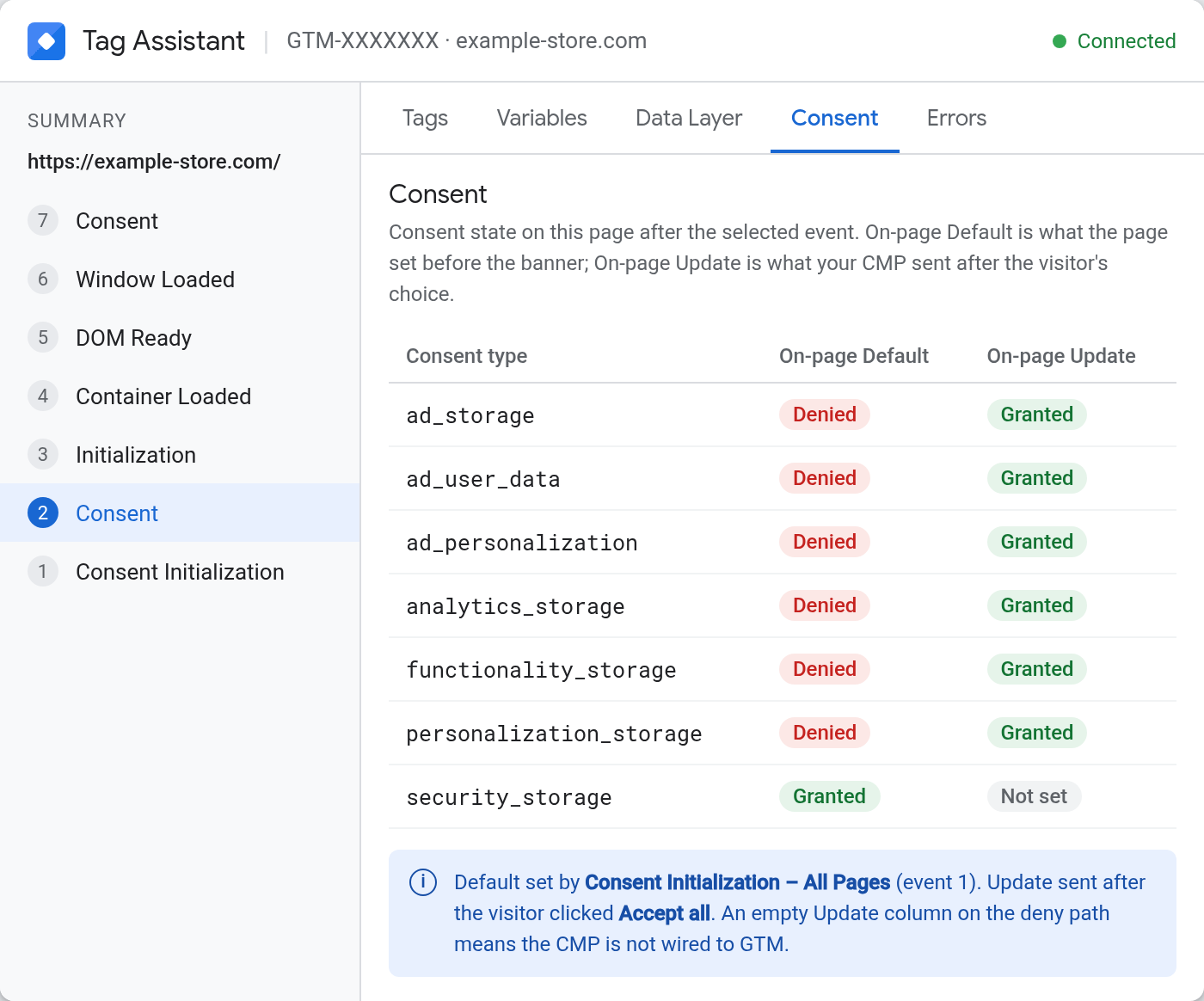
Google’s consent debugging guide names each failure: an empty Consent tab means consent mode is not implemented at all; a default that appears after a tag has already fired shows as “default consent set too late”; a missing update after the banner click means your CMP is not wired to GTM. Then open the Tags tab and click your GA4 and Ads tags to confirm which were blocked by consent on the deny path.
gcs and gcd in the network requests
Open DevTools → Network and filter for collect (GA4) or pagead (Ads). Every request carries a gcs parameter shaped G1xy: x is ad_storage, y is analytics_storage, 1 = granted, 0 = denied. So gcs=G100 is both denied, G111 both granted, G101 analytics only. A G100 hit is only possible in advanced mode — in basic mode there is no hit at all.
The v2 signals live in a second parameter, gcd, which encodes all four consent types and how each was set — a short string such as 11p1p1p1p5 where the letters matter: p = denied by default, no update; t = granted by default; r = denied by default, granted after update; u = granted by default, denied after update; l = not set. An l in any slot on an EEA visit means a parameter is missing from your default. Google does not document these encodings, so treat Tag Assistant as the source of truth and the network tab as the quick check.
GA4 DebugView and the Consent settings page
Consent mode v2 for GA4 is verified in two places. First, Admin → DebugView with your browser in debug mode (GTM Preview does this automatically). Do not lean on it for the deny path: without analytics_storage there is no stable identifier tying cookieless hits to one debug session, so the panel can look empty even when the tag fired. Read that path in the Network tab and in Tag Assistant instead, and use DebugView for what it is reliable at — confirming that events and parameters come back intact once consent is granted.
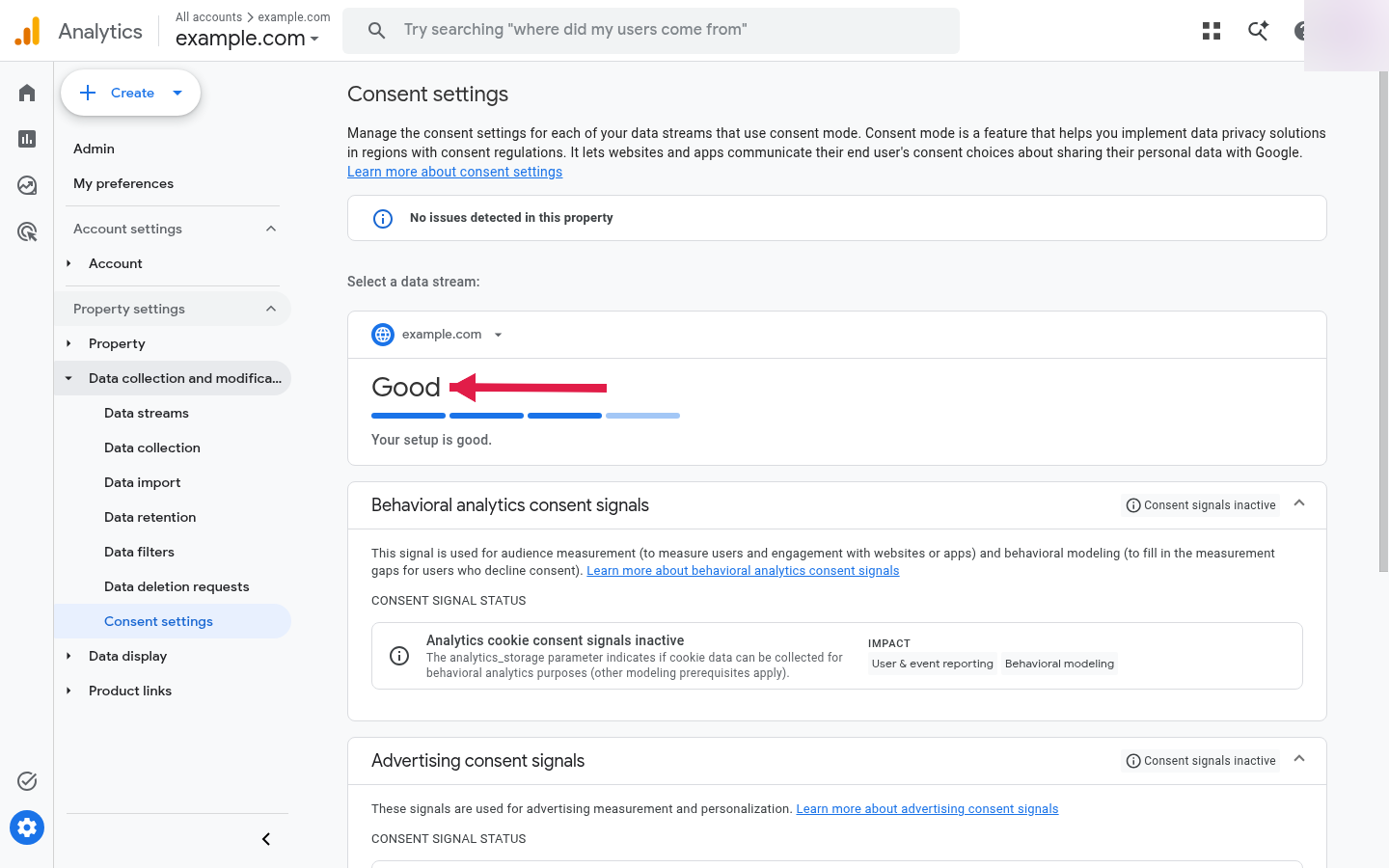
The property-level view is Admin → Data collection and modification → Consent settings. It shows the share of traffic from the EEA, then per data stream whether Analytics is receiving ad_user_data and ad_personalization. Google’s GA4 consent settings help page notes the notifications take 48–72 hours to update after you fix the site, so do not panic when the warning survives your deploy by a day.
What you should see before and after consent
| Check | Before the banner click (EEA) | After “Accept all” |
|---|---|---|
| Tag Assistant → Consent tab | Default column: all four denied; Update column empty |
Update column: all four granted |
Network: gcs |
G100 (advanced) or no request (basic) |
G111 |
| Cookies | No _ga, no _gcl_* |
_ga and _ga_* present (plus _gcl_* if Ads tags run) |
| GA4 DebugView | Unreliable without a client ID — read the network request instead | Events with full parameters |
Run the deny path too — click “Reject all” in a fresh incognito window and confirm the Update column shows denied, not blank. A blank column means the reject button pushed no event: correct by accident, not a working mechanism.
Checking Consent Mode v2 on someone else’s site
You can check whether Google Consent Mode v2 is enabled on any website without container access: load it in Tag Assistant by URL — an empty Consent tab means no consent mode, four defaults mean it is there. The network tab answers faster.
The workflow I use for audits: open the site in an incognito window with DevTools → Network filtered to collect, do not touch the banner, and read the first GA4 hit. gcs=G100 with p in the gcd slots means advanced mode with a default-deny — a competent setup. No collect request until you accept means basic mode or a script blocker; you cannot tell which from outside, and neither is wrong. gcs=G111 before any click means the site grants by default, which for an EEA visitor is the finding worth writing up. If there is no GA4 request at all, start one level earlier with the check for whether GA4 is installed — a consent mode audit on a page without a tag is a wasted afternoon. Repeat on a product page and a form page, not only the homepage; half-installed CMPs cover the entry page and forget the templates that carry the events.
Practical examples
Cookiebot integration walkthrough
When I configured Consent Mode v2 for a client running WooCommerce with a significant UK and German audience, Cookiebot was already installed but had not been updated for v2. The update took about 20 minutes. One thing that sits next to the banner work on that account: a German-facing shop owes a legal notice under § 5 DDG regardless of what its consent layer does — the two duties have different triggers.
- In GTM, add the “Cookiebot CMP” template from the Template Gallery to your workspace
- Create a tag from it and set the trigger to Consent Initialization – All Pages
- In the tag configuration, enable Google Consent Mode v2 and set all four defaults to
denied, scoped to the regions where the banner shows - In Cookiebot’s dashboard, verify the GTM integration and the Google Consent Mode option are both on
- Publish the container, then walk both paths in Preview
Cookiebot’s own Google Consent Mode documentation covers the template configuration in detail.
The thing I checked first: that the Cookiebot tag was firing on Consent Initialization and not on DOM Ready or Page View. Everything downstream depends on that one setting.
Manual implementation without a CMP
For smaller sites with a custom cookie notice, the manual path has three elements: the default consent script in the <head>, a listener for the user’s choice, and the update call. All three live on the page, not inside GTM.
The default block goes before the GTM snippet (the EU init snippet linked above is exactly that); the banner calls the update on click and writes the choice to a cookie. A minimal accept handler:
function acceptAll() {
  gtag('consent', 'update', {
    'ad_storage': 'granted',
    'analytics_storage': 'granted',
    'ad_user_data': 'granted',
    'ad_personalization': 'granted'
  });
  document.cookie = 'consent=all; max-age=15552000; path=/; SameSite=Lax';
}
On later page loads, read that cookie right after the default block and, if the visitor already accepted, replay the update immediately. The mistake I see repeatedly: the “decline” path pushes nothing and persists nothing, so the banner returns on every page and the update never fires for denied users. Before committing to an architecture, the client-side vs server-side tagging comparison is worth reading.
Server-side GTM and single-page apps
With server-side tagging, consent mode still happens in the browser: the web container reads the consent state and passes it along in the requests to your server container, and the server-side Google tags respect it from there. Check that the server container does not strip or overwrite the consent parameters when it forwards to GA4 or Google Ads — its Preview shows the incoming consent state per request. Our server-side tagging primer covers the container itself.
Single-page apps have a different trap: the default block runs once on the initial load, and virtual page views inherit whatever state is current. That is fine as long as the update is called on the view where the choice happens, not after a route change, and the app does not re-initialize the data layer on navigation.
Common mistakes to avoid
After a few dozen Google Consent Mode implementations on client websites, these are the issues that come up most often — several overlap with the broader list of GTM mistakes that break tracking:
- Default call fires too late. The consent tag sits on Page View or DOM Ready instead of Consent Initialization, so tags fire ungated.
- Missing
ad_user_dataandad_personalization. A v1 setup that only setsad_storageandanalytics_storage. GA4’s Consent settings page warns about it within days. - CMP integration not updated. Plugins and templates that worked for v1 may not pass the new parameters — check the changelog for an explicit v2 entry.
- Default deny everywhere. A US-only audience under blanket
denieddefaults loses measurement for no legal reason. Useregionor your CMP’s geo rules. - Never validating modeling. Look at conversions 7–14 days after launch. No modeled conversions for EEA users where a meaningful share declines means your update calls are not reaching Google.
How conversion modeling handles denied consent
Modeling is not automatic, and Google publishes the eligibility rules but not a recovery rate. Per the Google Ads consent mode modeling documentation, it requires a correctly implemented consent mode (or TCF v2) and at least 700 ad clicks over a 7-day period per country and domain grouping; below that, unconsented conversions stay unrecovered. The same page notes that consented users are typically 2–5× more likely to convert than unconsented ones, so a 50% consent rate does not translate into a 50% conversion drop. Uplift starts appearing after seven full days, and only for slices that clear the threshold.
The practical consequence is bidding. With 35% of EEA visitors declining, advanced mode hands Smart Bidding a modeled view of the missing third; basic mode falls back to Google’s general model; no consent mode at all leaves the algorithm on the observed 65%, and that gap compounds into worse bid decisions. For what sits beyond consent mode, see cookieless measurement strategies.
FAQ
Do I need Consent Mode v2 if I only use GA4 and no Google Ads?
Google’s enforcement is aimed at ads measurement and personalization, so a GA4-only property loses no ads features. You still need a lawful basis for the analytics cookies, and consent mode is the mechanism that lets GA4 honor a decline — most GA4-only EEA sites run it anyway, if only for the behavioral modeling.
Which WordPress plugins support Consent Mode v2?
Borlabs Cookie, Complianz, CookieYes and Cookiebot’s WordPress plugin all emit the four v2 signals; Complianz, CookieYes and Cookiebot are on Google’s CMP partner list. Check the changelog for an explicit “Consent Mode v2” entry, then verify in Tag Assistant rather than trusting the settings page.
Does Consent Mode v2 replace my cookie banner?
No. Consent mode does not collect consent, show a banner or store the choice — it only tells Google tags what the visitor decided. You still need a banner (a CMP or your own) that satisfies ePrivacy and GDPR, and consent mode is wired to it.
How long until Google Ads and GA4 stop showing consent warnings?
Give it a few days — GA4’s own lag is in the Consent settings section above, and Google Ads shows consent mode status in the conversion diagnostics tab. If a warning survives a week, the update call is not reaching Google: test both paths again.
Is advanced consent mode legal in the EU?
There is no settled answer, and this guide is not the place to invent one. The open question is whether a cookieless ping counts as access to information stored on the user’s device under the ePrivacy rules — if it does, it needs consent like any cookie; if it does not, it may run under a default-deny state. Supervisory authorities across the EU have not converged on a single reading, which is why Google ships both modes. Treat the choice as a decision for your DPO or the client’s counsel rather than a technical one: the setup above supports either answer, and moving from advanced to basic is a CMP setting, not a rebuild.
Continue learning
These articles build on what you have set up here:
- Client-side vs server-side tagging — how tag architecture affects consent signal delivery
- How to verify your GTM setup is working — the full GTM debugging workflow
- Cookieless measurement strategies — the rest of a privacy-first measurement stack
Before you go live
Before publishing the container, run this in order — it takes ten minutes and catches nearly everything above:
- Consent tag on Consent Initialization – All Pages, nothing else on that trigger
- Tag Assistant: earliest Consent event shows all four parameters in the default;
regionmatches where the banner shows - Accept path: Update column all
granted,gcs=G111,_gacookie present - Deny path in a fresh incognito window: Update column all
denied,gcs=G100(advanced) or no hit (basic), no_gacookie - Return visit after accepting: no banner, update replayed from the stored choice
- Non-Google tags carry additional consent checks in Consent Overview
- GA4 Admin → Consent settings checked again 72 hours after launch
If you already have v1 in place, the upgrade is usually a CMP configuration change plus a container republish, not a rebuild. Consent mode is one row on our pre-launch tracking checklist; when the rest of that list is green as well, publish.