Tracking Setup
GTM Naming Conventions: Why They Matter and How to Set Them Up
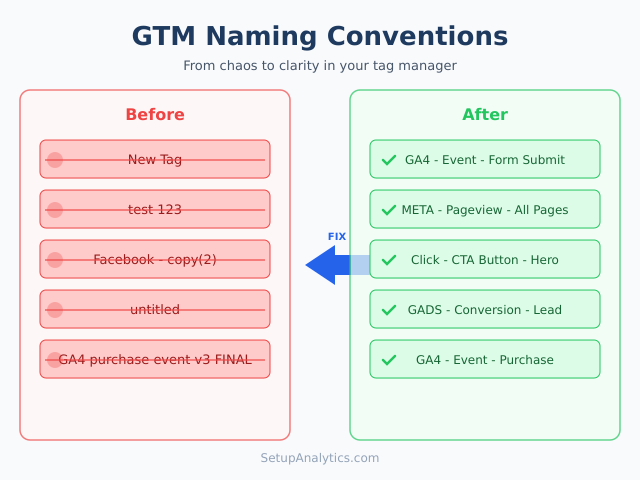
If you have ever opened a Google Tag Manager container and found tags named “New Tag,” “test 123,” or “Facebook – copy (2),” you already know the problem. Messy naming conventions turn a powerful tool into a source of confusion, wasted time, and costly errors. In this guide, you will learn exactly how to build a consistent naming system for every tag, trigger, and variable in your GTM container so that anyone on your team can understand what each element does at a glance.
Why GTM Naming Conventions Matter
When I audit client containers, the first thing I look at is naming. It tells me everything about how organized the team is and how maintainable the setup will be over time. A container with 50+ tags and no naming structure is essentially a ticking time bomb.
Here is what happens without clear GTM naming conventions in practice. A developer creates a tag called “GA4 Event” with no further detail. Three months later, another team member duplicates it, adds a small change, and names it “GA4 Event – new.” Meanwhile, a third person adds “conversion tag” without specifying which platform or which conversion. Before long, nobody knows which tags are active, which are redundant, and which are safe to delete.
The consequences are real. Teams waste hours trying to reverse-engineer what a tag does instead of building new tracking. Duplicate tags fire on the same pages, inflating data or causing conflicts. Critical tags get accidentally paused or deleted because someone mistook them for test versions. According to Google’s own GTM documentation, organized containers are essential for maintaining accurate data collection at scale.
In contrast, a well-named container is self-documenting. Every element’s purpose, scope, and context are immediately clear. This is especially important if you work with a team, hand off containers to clients, or simply need to troubleshoot something six months after you set it up. Consistent Google Tag Manager naming best practices save time, reduce errors, and make your tracking setup auditable.
The Anatomy of a Good GTM Name
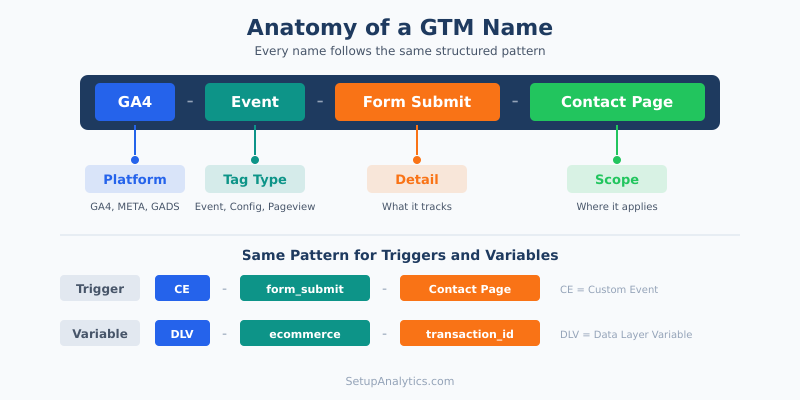
Every well-structured GTM name follows a predictable pattern. The most widely adopted format uses a combination of type, category, and detail, separated by a consistent delimiter.
The general format looks like this:
[Type] - [Category] - [Detail]
For example, a GA4 event tag tracking form submissions would be named GA4 - Event - Form Submit - Contact Page. At a glance, you know the platform (GA4), the function (event tracking), the action (form submit), and the scope (contact page). There is no ambiguity.
Before diving into specific rules, it helps to understand the three element types you will be naming throughout your container.
| Element Type | What It Does | Naming Prefix Examples |
|---|---|---|
| Tags | Send data to platforms (GA4, Meta, Google Ads) | GA4, META, GADS, LI |
| Triggers | Define when tags fire | Click, PageView, Scroll, Timer |
| Variables | Store and compute dynamic values | DLV, CSS, JS, Lookup |
As for separators, you have three common options. In my experience working with large GTM containers across dozens of clients, the dash surrounded by spaces works best for readability.
| Separator Style | Example | Readability |
|---|---|---|
| Dash with spaces | GA4 - Event - Button Click |
High |
| Underscore | GA4_Event_Button_Click |
Medium |
| Dot | GA4.Event.Button_Click |
Medium |
| Pipe | GA4 | Event | Button Click |
High |
The key rule is consistency. Pick one style and stick with it across your entire container. If you want to generate a naming convention tailored to your setup automatically, try our GTM Naming Convention Generator.
Naming Rules for Tags
Format and Examples
Tags are the most visible elements in your container, so their names need to communicate the most information. The recommended format for tags follows this structure:
[Platform] - [Tag Type] - [Detail] - [Scope/Page]
Here is how this works in practice:
- Start with the platform or vendor the tag sends data to (GA4, META, GADS, LinkedIn, Hotjar).
- Add the tag type to indicate what the tag does (Config, Event, Conversion, Pageview, Remarketing).
- Include a detail that describes the specific action or purpose.
- Optionally, add the scope if the tag only fires on specific pages or sections.
For instance, a Google Ads conversion tag that tracks purchases on your checkout page should be named GADS - Conversion - Purchase - Checkout. This approach ensures that when you sort tags alphabetically in GTM, all tags for the same platform group together naturally.
Common Tag Naming Patterns
| Tag Purpose | Recommended Name |
|---|---|
| GA4 configuration | GA4 - Config - All Pages |
| GA4 custom event | GA4 - Event - Form Submit - Contact |
| GA4 scroll tracking | GA4 - Event - Scroll Depth - 50% |
| Meta Pixel base code | META - Pageview - All Pages |
| Meta purchase event | META - Event - Purchase |
| Google Ads conversion | GADS - Conversion - Lead - Demo Request |
| Google Ads remarketing | GADS - Remarketing - All Pages |
| LinkedIn Insight Tag | LI - Pageview - All Pages |
| Hotjar tracking code | HOTJAR - Config - All Pages |
| Custom HTML for consent | HTML - Consent - Cookie Banner Init |
Notice how each name tells you exactly what the tag does without needing to open it. This is the hallmark of good GTM container organization. When troubleshooting, you can quickly identify which tags relate to a specific platform or function, which dramatically speeds up debugging. For more on verifying your tags work correctly after setup, check out our guide on how to check if your GTM is working properly.
Naming Rules for Triggers
Format and Examples
Triggers define when your tags fire, so their names should clearly describe the condition. The format for triggers is slightly different from tags because the focus shifts from platform to event type.
[Trigger Type] - [Detail] - [Condition]
Consider these guidelines when naming triggers:
- Start with the trigger type that matches GTM’s built-in categories (Click, PageView, Scroll, Form, Timer, Custom Event, DOM Ready).
- Add a detail describing what specifically triggers it.
- Include any conditions or filters that narrow when the trigger fires.
For example, a trigger that fires when someone clicks a CTA button on the pricing page would be named Click - CTA Button - Pricing Page. Meanwhile, a trigger that fires on all page views would simply be PageView - All Pages.
Common Trigger Naming Patterns
| Trigger Purpose | Recommended Name |
|---|---|
| All page views | PageView - All Pages |
| Specific page view | PageView - Thank You Page |
| DOM ready | DOM Ready - All Pages |
| Link click | Click - Outbound Links |
| Button click | Click - CTA Button - Hero Section |
| Form submission | Form - Submit - Contact Form |
| Scroll depth | Scroll - 25% 50% 75% 100% |
| YouTube video | Video - YouTube - Start Pause Complete |
| Custom event from dataLayer | CE - purchase_complete |
| Timer trigger | Timer - 30s - All Pages |
| Element visibility | Visibility - Footer - All Pages |
One important point to keep in mind: triggers are often shared across multiple tags. Therefore, avoid naming triggers after specific tags or platforms. Instead, describe what happens in the browser. A trigger called Click - Add to Cart Button is far more reusable than one called GA4 Add to Cart Trigger. Understanding trigger logic is closely tied to how event tracking works in general, so make sure you have a solid grasp of those fundamentals as well.
Naming Rules for Variables
Format and Examples
Variables are the building blocks that store dynamic values used by your tags and triggers. Because GTM supports many variable types, the naming convention needs to reflect the source of the data, not just its purpose.
[Variable Type] - [Description]
Follow these steps when naming variables:
- Start with a short type abbreviation that indicates how the variable retrieves its value (DLV for Data Layer Variable, CSS for CSS Selector, JS for Custom JavaScript, Lookup for Lookup Table, CONST for Constant).
- Add a clear description of what value the variable holds.
For example, a Data Layer Variable that captures the transaction ID would be named DLV - transaction_id. A custom JavaScript variable that calculates the scroll percentage would be JS - Scroll Percentage. This approach makes it immediately clear both what the variable contains and how it gets its value.
Common Variable Naming Patterns
| Variable Purpose | Recommended Name |
|---|---|
| Data Layer – event name | DLV - event_name |
| Data Layer – transaction ID | DLV - transaction_id |
| Data Layer – product name | DLV - item_name |
| 1st party cookie | COOKIE - _ga |
| CSS selector value | CSS - Page Title H1 |
| Custom JavaScript | JS - Scroll Percentage |
| Lookup table | Lookup - GA4 Measurement ID |
| Constant string | CONST - GA4 Measurement ID |
| Google Analytics settings | SETTINGS - GA4 Config |
| Regex table | REGEX - Page Category |
| Auto-event variable | AEV - Click URL |
A well-named variable saves significant debugging time. When you see DLV - transaction_id in a tag configuration, you immediately know it pulls from the data layer. Compare that to a variable simply called “transactionID” where you would need to open it to understand its source.
Folder Structure: Organizing Your Container
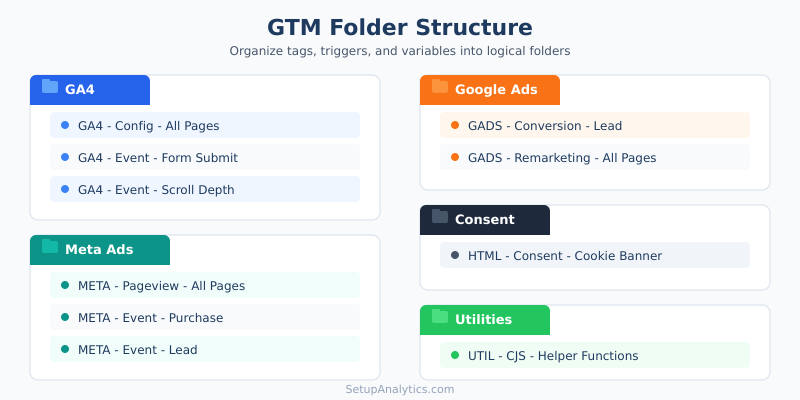
Beyond naming individual elements, GTM provides folders to group related items. Think of GTM folder structure as the filing cabinet that holds your neatly labeled documents. Even with perfect names, a flat list of 100+ items becomes hard to navigate.
There are two effective strategies for organizing folders:
Strategy 1: Organize by platform or vendor. This works best when you have multiple marketing and analytics platforms in one container.
GA4– All GA4 tags, triggers specific to GA4, and GA4-related variablesMeta Ads– Facebook Pixel tags and related elementsGoogle Ads– Conversion tags and remarketingConsent– Cookie consent banner tags and triggersUtilities– Shared triggers, helper variables, and custom templates
Strategy 2: Organize by function. This approach groups elements by what they do rather than which platform they serve.
Tracking - PageviewsTracking - EventsTracking - ConversionsMarketing - RemarketingConfig - Settings
In my experience, Strategy 1 (by platform) scales better for most organizations because team members typically own specific platforms. However, you should create new folders whenever a logical group reaches five or more items. Additionally, keep a dedicated folder for anything related to server-side tagging if you run a hybrid setup, since those elements have different deployment considerations.
Setting Up Naming Conventions for Your Team
Having a naming convention in your head is not enough. For it to work across a team, you need documentation and enforcement. Here is how to make conventions stick.
Create a naming convention reference document. This does not need to be complicated. A simple shared document with the following sections is sufficient:
- General rules – Separator style, capitalization rules, and abbreviation list.
- Tag naming formula –
[Platform] - [Type] - [Detail] - [Scope]with three examples. - Trigger naming formula –
[Trigger Type] - [Detail] - [Condition]with three examples. - Variable naming formula –
[Variable Type] - [Description]with three examples. - Abbreviation reference table – All approved short codes (GA4, META, GADS, DLV, etc.).
- Folder assignments – Which folder each type of element belongs in.
To generate this document automatically, you can use our GTM Naming Convention Generator tool, which creates a customized naming system based on your specific platforms and requirements.
Enforce through process, not policing. Instead of reviewing every change manually, build conventions into your workflow with these practical steps:
- Add naming conventions to your GTM workspace description so they are visible to anyone who opens the container.
- Use GTM’s workspace and approval features to review changes before publishing.
- Run periodic audits using our GTM Container Linter to catch naming violations automatically.
- Include naming standards in your onboarding checklist for new team members or agency partners.
According to Simo Ahava’s container cleanup guide, regular container maintenance combined with strong naming conventions is the most effective way to prevent technical debt in your tracking setup.
Common Naming Mistakes to Avoid
After auditing hundreds of GTM containers, I have seen the same tag naming rules violations repeatedly. They rarely travel alone, either — sloppy naming usually sits next to the other common GTM mistakes that quietly break your tracking. Here are the most common mistakes and how to avoid them.
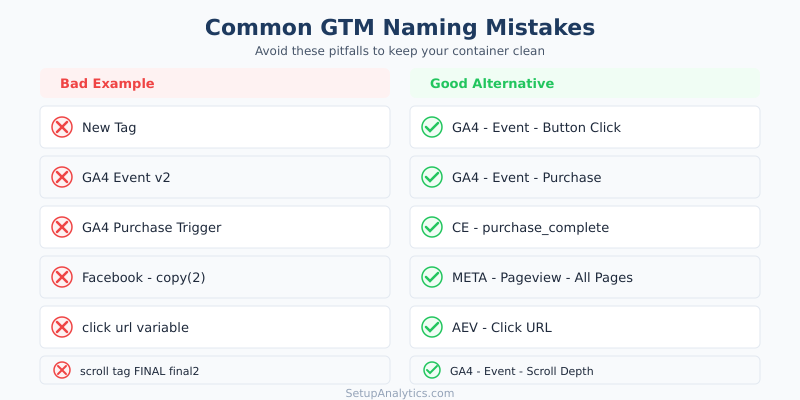
- Using generic names like “New Tag” or “Untitled.” GTM creates default names when you add elements. Always rename them immediately before configuring anything else. Once you save a tag with a generic name and move on, you will forget what it does.
- Including version numbers in names. Names like
GA4 Event v2orFacebook Pixel - updatedsignal that old versions still exist. Instead of versioning, delete or pause the old element and give the new one a clean, descriptive name. - Mixing separator styles within the same container. If some tags use dashes and others use underscores while a few use dots, sorting and scanning become unreliable. Pick one separator and enforce it everywhere.
- Naming triggers after specific tags. A trigger called
GA4 Purchase Triggerdiscourages reuse. Name itCE - purchase_completeinstead, and it can serve GA4, Meta, and Google Ads tags alike. - Using overly long names. While descriptive names are good, a tag called
GA4 - Event - User Clicked the Main Red CTA Button on the Homepage Hero Section Above the Foldis excessive. Aim for clarity in four to six segments maximum. - Forgetting to name variables by type. When all variables start with descriptive words like “Transaction ID” or “Page URL” without a type prefix, you lose the ability to quickly identify how they retrieve data. Always include the type abbreviation.
- Using inconsistent capitalization. Mixing
GA4 - event - Form SubmitwithGA4 - Event - form submitcreates confusion and makes alphabetical sorting unpredictable. Decide on Title Case, lowercase, or UPPERCASE for each segment and stick with it. - Not updating names when functionality changes. If you modify a tag’s behavior but keep the old name, the name becomes misleading. Always update the name to reflect the current function. This is just as important as the initial naming. For more on maintaining container hygiene, our Tracking QA Checklist Generator can help you build a review process.
Continue Learning
Now that you have a solid naming convention framework, here are resources to take your GTM skills further:
- How to Check If Your GTM Is Working Properly – Verify that your newly organized tags are firing correctly.
- Event Tracking Basics – Understand the fundamentals of event tracking that your named tags will implement.
- Client-Side vs. Server-Side Tagging – Learn how naming conventions apply differently in server-side containers.
- GTM Naming Convention Generator – Generate a complete, customized naming system for your container in seconds.
- GTM Container Linter – Upload your container export and automatically detect naming violations and organizational issues.
Bottom Line
GTM naming conventions are not just about aesthetics or personal preference. They are a practical investment in the long-term health of your tracking infrastructure. A container with consistent, descriptive names for every tag, trigger, and variable is easier to debug, safer to modify, and faster to hand off to new team members.
The setup process involves a one-time effort to define your rules, document them, and apply them to existing elements. After that, maintaining conventions becomes second nature. Start with the format templates in this guide, customize them for your platforms and team size, and enforce them through documentation and periodic audits.
If you are working with an existing messy container, do not try to rename everything at once. Instead, rename elements as you touch them during regular work. Within a few weeks, your container will be significantly more organized. And if you want to speed up the process, use our GTM Container Linter to identify the worst offenders first, then work through them systematically.
Configure this once, maintain it consistently, and your future self and your team will thank you.