
Regular expressions look intimidating. A string like ^/blog/.*(?!amp)$ reads like random noise to most marketers. But regex in GA4 is one of the most practical skills you can learn — it turns a five-minute filter setup into a five-second one, and it unlocks data views that are simply impossible without pattern matching.
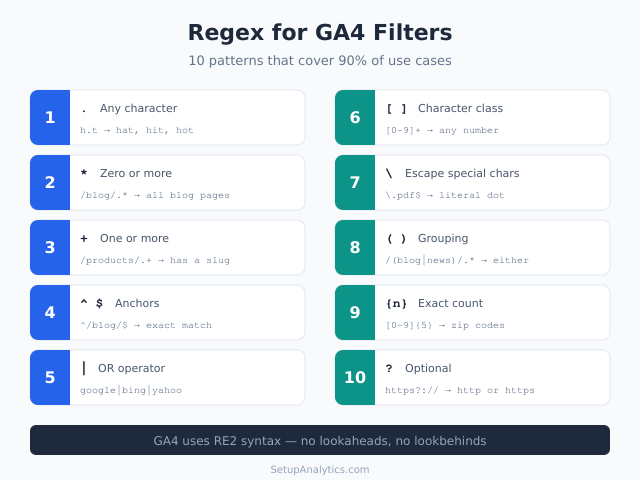
You don’t need to become a regex expert. You need to learn about 10 patterns that cover 90% of real-world analytics use cases. This guide focuses on exactly those patterns, with examples you can copy and adapt for your own GA4 filters, audiences, and explorations.
If you want to build and test patterns interactively, our Regex Builder for GA4 Filters lets you construct, validate, and copy regex patterns with a live preview — no syntax memorization required.
Why Regex Matters for GA4
GA4 uses regular expressions in several critical places:
- Data filters — include or exclude traffic based on URL patterns, IP addresses, or referrer domains
- Audiences — create segments based on page path patterns or event parameters
- Explorations — filter dimensions using regex matching in free-form and funnel reports
- Custom channel groupings — define traffic sources using pattern-based rules
- Looker Studio — regex filters in connected GA4 data sources
Without regex, you’re limited to exact match or “contains” filters. That works for simple cases, but the moment you need to match multiple URL patterns, exclude specific subfolders, or capture dynamic page paths, regex becomes essential.
Important: GA4 uses RE2 syntax, not the PCRE flavor you might know from JavaScript or Python. The biggest practical difference is that RE2 does not support lookaheads or lookbehinds. Keep this in mind when adapting patterns from other tools.
The 10 Regex Patterns Every Marketer Needs
These patterns are ordered from simplest to most useful. Each one builds on the previous, so by the end you’ll have a solid working vocabulary for GA4 regex filters.
1. The Dot: Match Any Character
The dot (.) matches any single character except a newline. It’s the wildcard of regex.
| Pattern | Matches | Doesn’t Match |
|---|---|---|
h.t |
hat, hit, hot, h3t | ht, hoot |
page. |
page1, pageA, page- | page, page10 |
On its own, the dot isn’t very useful. Its power comes when combined with quantifiers.
2. The Star: Match Zero or More
The asterisk (*) means “zero or more of the preceding element.” Combined with the dot, .* matches anything of any length — the most common pattern you’ll use.
| Pattern | Matches | Use Case |
|---|---|---|
/blog/.* |
/blog/, /blog/my-post, /blog/2026/03/ | All blog pages |
.*thank.* |
/thank-you, /thanks, /thankyou-page | All thank-you pages |
3. The Plus: Match One or More
The plus sign (+) means “one or more of the preceding element.” Unlike *, it requires at least one match.
| Pattern | Matches | Doesn’t Match |
|---|---|---|
/products/.+ |
/products/shoes, /products/123 | /products/ (empty) |
utm_source=.+ |
utm_source=google, utm_source=email | utm_source= (no value) |
4. Anchors: Start and End of String
The caret (^) matches the start of a string, the dollar sign ($) matches the end. Together, they let you match exact patterns rather than substrings.
| Pattern | Matches | Doesn’t Match |
|---|---|---|
^/blog/$ |
/blog/ (exactly) | /blog/my-post |
^/products/ |
/products/anything | /old-products/shoes |
\.pdf$ |
report.pdf, guide.pdf | pdf-viewer, mypdf |
This is crucial for GA4 data filters. Without anchors, a filter for /blog would also match /blog-archive or /myblog. Anchors give you precision.
5. The Pipe: OR Operator
The pipe character (|) means “or.” It lets you match multiple alternatives in a single pattern — one of the most practical regex patterns for analytics.
| Pattern | Matches | Use Case |
|---|---|---|
google|bing|yahoo |
google, bing, yahoo | Search engine filter |
/cart|/checkout|/thank-you |
Any of those three paths | Conversion funnel |
^/(en|fr|de)/ |
/en/, /fr/, /de/ | Language subfolders |
In practice, the pipe operator replaces dozens of individual “contains” conditions with one clean expression.
6. Character Classes: Match a Set
Square brackets ([]) define a set of characters to match. Any single character inside the brackets counts as a match.
| Pattern | Matches | Use Case |
|---|---|---|
[0-9]+ |
Any number sequence | Match numeric IDs |
[a-z]+ |
Lowercase letters | Match slug patterns |
/page/[0-9]+ |
/page/1, /page/25, /page/100 | Pagination pages |
The caret inside brackets ([^...]) negates the set. For example, [^0-9] matches any character that is not a digit.
7. Escaping Special Characters
Characters like ., *, +, ?, (, ), [, ], |, ^, and $ have special meaning in regex. To match them literally, prefix them with a backslash (\).
| Pattern | Matches | Without Escape |
|---|---|---|
\.pdf$ |
file.pdf | .pdf$ also matches “Xpdf” |
example\.com |
example.com | example.com matches “exampleXcom” |
\?utm_ |
?utm_source=… | ?utm_ means “optional ‘u’” |
This is a common source of bugs in GA4 keyword tracking and URL filters. Always escape dots in domain names and question marks in query strings.
8. Grouping With Parentheses
Parentheses () group parts of a pattern together. This is essential when using the pipe operator or applying quantifiers to multi-character sequences.
| Pattern | Matches | Why Grouping Matters |
|---|---|---|
/(blog|news)/.* |
/blog/post, /news/article | Without parens, pipe applies to everything |
(un)?subscribe |
subscribe, unsubscribe | Makes “un” optional as a unit |
/products/(shoes|bags)/ |
/products/shoes/, /products/bags/ | Limits alternatives to one position |
9. Quantifiers: Exact Counts
Curly braces let you specify exact repetition counts. This is useful for matching structured patterns like dates, IDs, or zip codes.
| Pattern | Meaning | Example Match |
|---|---|---|
[0-9]{5} |
Exactly 5 digits | 90210, 10001 |
[0-9]{2,4} |
2 to 4 digits | 12, 123, 1234 |
/[a-z]{2}/ |
Two-letter path segment | /en/, /fr/, /de/ |
10. The Question Mark: Optional Elements
The question mark (?) makes the preceding element optional — it matches zero or one occurrence.
| Pattern | Matches | Use Case |
|---|---|---|
https?:// |
http:// and https:// | Match both protocols |
/products/?$ |
/products and /products/ | With or without trailing slash |
colou?r |
color and colour | Spelling variations |

Real-World GA4 Regex Examples
Theory is useful, but practical examples are better. Here are regex patterns I use regularly in GA4 setups. Each one solves a specific, common problem.
Exclude Internal Traffic by IP
If your team uses multiple IP addresses, one regex replaces multiple filter rules:
^(192\.168\.1\.100|10\.0\.0\.(25|26|27)|172\.16\.0\.[0-9]+)$This matches three IP addresses or ranges in a single expression. In GA4, you’d use this in a data filter under Admin → Data Settings → Data Filters.
Match All Product Category Pages
^/products/(shoes|bags|accessories)/[^/]+/?$This matches individual product pages within specific categories — like /products/shoes/running-sneakers/ — but not the category listing pages themselves.
Capture Blog Posts but Not Archives
^/blog/[a-z0-9-]+/?$This matches /blog/my-post-title/ but excludes paginated archives like /blog/page/2/ or tag pages like /blog/tag/analytics/. The character class [a-z0-9-] restricts matches to slug-like patterns.
Filter Multiple UTM Sources
utm_source=(newsletter|email_blast|weekly_digest)When building GA4 audiences based on campaign sources, this pattern captures users from any of your email campaigns in one filter.
Match Localized Pages
^/(en|fr|de|es|pt)/(about|contact|pricing)/?$For multilingual sites, this matches specific pages across all language versions. It’s far more maintainable than creating separate filters for each language.
Common Regex Mistakes in GA4
Even experienced analysts make these errors. Most trace back to forgetting that GA4 uses RE2 syntax.
| Mistake | Problem | Fix |
|---|---|---|
Using lookaheads (?=...) |
Not supported in RE2 | Restructure pattern or use separate filters |
| Forgetting to escape dots | google.com matches googleXcom |
Use google\.com |
| Missing anchors | Pattern matches unintended substrings | Add ^ and $ where needed |
| Overcomplicating patterns | Hard to debug and maintain | Use the pipe operator for alternatives |
| Not testing first | Filter blocks all data | Test in Explorations before applying to filters |
The biggest risk with regex in GA4 data filters is that a wrong pattern can exclude legitimate traffic — or include everything. Always test patterns in an Exploration report first before applying them as permanent data filters. For quick validation, our Regex Builder shows you exactly what matches and what doesn’t.

RE2 vs PCRE: What GA4 Supports
GA4 uses Google’s RE2 regex engine, which is intentionally limited compared to PCRE (used in most programming languages). Here’s what you need to know:
| Feature | RE2 (GA4) | PCRE (JavaScript/Python) |
|---|---|---|
Basic matching (., *, +, ?) |
Supported | Supported |
Character classes ([a-z]) |
Supported | Supported |
Anchors (^, $) |
Supported | Supported |
| Grouping and alternation | Supported | Supported |
Quantifiers ({n}, {n,m}) |
Supported | Supported |
Lookaheads ((?=...)) |
Not supported | Supported |
Lookbehinds ((?<=...)) |
Not supported | Supported |
Backreferences (\1) |
Not supported | Supported |
| Atomic groups | Not supported | Supported |
In practice, the missing features rarely matter for analytics use cases. The ten patterns covered earlier in this guide handle the vast majority of real-world GA4 filtering needs. For more context on configuring GA4 properly, our article on adding the GA4 tracking code covers the foundation you need.
Building and Testing Patterns
Writing regex from scratch invites errors. A better approach is to build patterns incrementally and test each part before combining them.
Step 1: Start with the simplest version that matches your target.
Step 2: Add anchors to prevent unintended matches.
Step 3: Test against both positive examples (should match) and negative examples (should not match).
Step 4: Simplify if possible — shorter patterns are easier to maintain.
Our Regex Builder for GA4 Filters is designed specifically for this workflow. It shows real-time match results, validates RE2 compatibility, and generates copy-ready patterns for your GA4 configuration. You can also build patterns visually by selecting common components instead of typing raw syntax.
If you’re building event tracking with custom parameters, regex helps you validate that parameter values follow expected patterns. For instance, checking that transaction_id values match your expected format before they reach GA4.
Continue Learning
Regex is one piece of the GA4 skills puzzle. Here are related resources to deepen your analytics knowledge:
- Regex Builder for GA4 Filters — Build, test, and copy regex patterns with a visual interface and RE2 validation
- How to Track Organic Keywords in GA4 — Apply regex filters to keyword data for better organic search insights
- Beyond Pageviews: Engagement Metrics That Matter — Use regex-filtered data to focus on metrics that drive decisions
- 10 Common GTM Mistakes — Avoid the most common tracking errors that regex alone can’t fix
Bottom Line
Regex in GA4 isn’t about memorizing obscure syntax — it’s about learning a handful of patterns that solve real filtering problems. The ten patterns in this guide (dot, star, plus, anchors, pipe, character classes, escaping, grouping, quantifiers, and question mark) cover virtually every analytics use case you’ll encounter.
Start simple. Use the pipe operator to combine multiple conditions. Add anchors to prevent false matches. Test before applying. And when you need to build something more complex, use a visual regex builder to avoid syntax errors. You’ll save hours of manual filter creation and unlock data views that aren’t possible any other way.

Leave a Reply