
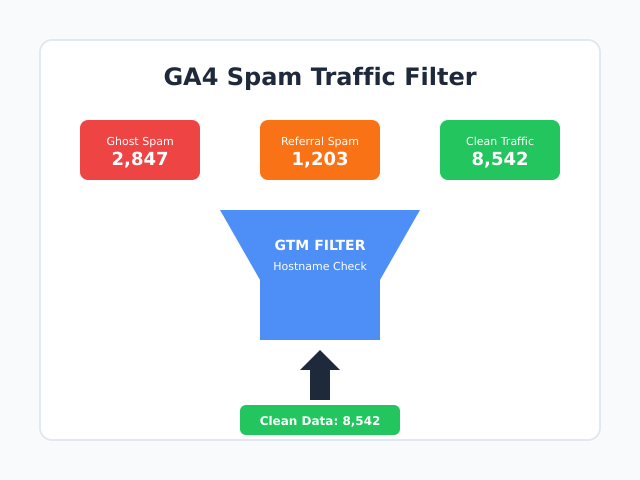
Open your GA4 reports and something looks off. Sessions spiked overnight, but conversions stayed flat. Engagement time dropped to zero for hundreds of visits. You’re looking at spam traffic — and in GA4, it’s harder to filter than it ever was in Universal Analytics.
The problem isn’t just annoying numbers. Spam traffic corrupts your data, skews your metrics, and makes it nearly impossible to trust what you’re seeing. When 20% of your “users” are bots, every decision based on that data carries risk.
In this guide, I’ll walk you through how to identify spam in GA4, the different types you’ll encounter, and practical methods to filter it out. Some solutions work inside GA4 itself. Others require Google Tag Manager. None of them are perfect — but together, they’ll get your data as clean as possible.
Why GA4 Makes Spam Filtering Harder
If you used Universal Analytics, you probably remember the Referral Exclusion List and view-level filters. They weren’t perfect, but they gave you direct control over what traffic appeared in your reports.
GA4 removed most of those controls. Here’s what changed:
- No view-level filters — GA4 uses a single data stream model, so you can’t create filtered views
- Limited exclusion options — The “Unwanted Referrals” list only reclassifies traffic as direct, it doesn’t block it
- No retroactive filtering — Once spam hits your property, you can’t remove it from historical data
- Measurement ID exposure — Spammers can send fake hits directly to your property using your public Measurement ID
GA4 does include automatic bot filtering for known bots from the IAB/ABC International Spiders & Bots List. However, this only catches bots that self-identify. Sophisticated spam and ghost traffic bypass this completely.
Related: How to check if your GTM is working properly — verify your setup before troubleshooting data issues.
Types of Spam Traffic in GA4
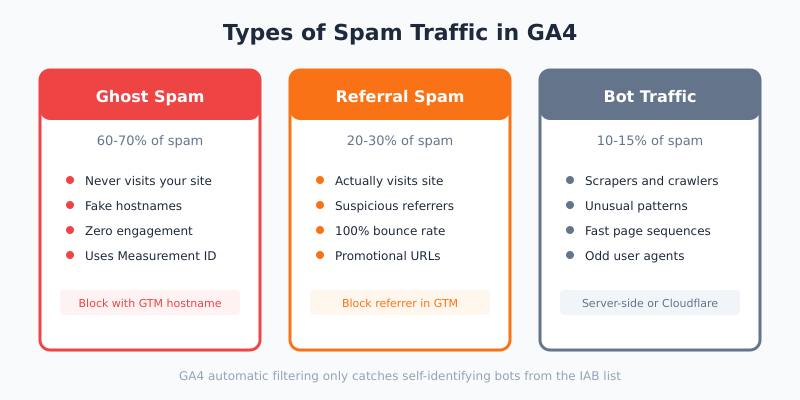
Not all spam works the same way. Understanding the type you’re dealing with determines which filtering method will actually work.
Ghost Spam (Measurement Protocol Spam)
Ghost spam never touches your website. Spammers send fabricated data directly to Google’s servers using your Measurement ID, which is publicly visible in your site’s source code.
Signs of ghost spam:
- Hostname doesn’t match your actual domain
- Zero engagement time
- Page paths that don’t exist on your site
- Often carries promotional messages in page titles or referrer fields
In my experience, ghost spam accounts for roughly 60-70% of spam traffic in affected properties. It’s also the hardest to block because the traffic never actually reaches your server.
Referral Spam (Crawler Spam)
Referral spam comes from actual bots that visit your site. They trigger your GA4 tag legitimately, but their goal is to get you to visit their domain (visible in your referral reports) out of curiosity.
Common characteristics:
- Hostname matches your domain (unlike ghost spam)
- Suspicious referral sources with promotional domain names
- Often shows bounce rate near 100%
- May generate real server load
Bot Traffic
Bots include everything from search engine crawlers (which GA4 filters automatically) to malicious scrapers and click fraud bots. Legitimate bots usually identify themselves; problematic ones don’t.
Signs of bot traffic:
- Unusual traffic patterns (spikes at odd hours, geographic anomalies)
- Identical session behavior across many users
- Impossibly fast page load sequences
- User agents that don’t match typical browsers
How to Identify Spam in Your GA4 Reports
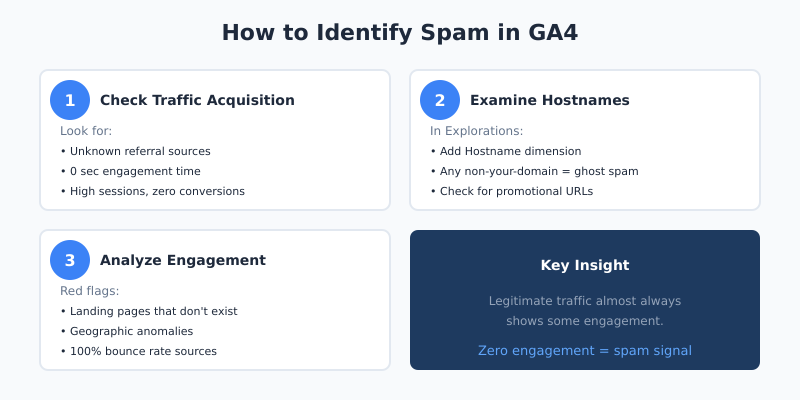
Before you can filter spam, you need to find it. Here’s a systematic approach I use when auditing GA4 properties.
Step 1: Check Session Source/Medium Report
Go to Reports → Acquisition → Traffic Acquisition. Look for:
- Referral sources you don’t recognize
- Sources with 0 seconds average engagement time
- High session counts with zero conversions
- Domain names that look promotional or suspicious
Step 2: Examine Hostnames in Explorations
This is the fastest way to spot ghost spam:
- Open Explore and create a new Free-form exploration
- Add Hostname as a dimension
- Add Sessions as a metric
- Look for any hostname that isn’t your actual domain
If you see hostnames like “best-seo-service.com” or random strings — that’s ghost spam. Your legitimate traffic should only show your actual domain (and possibly localhost if you have a development environment).
Step 3: Analyze Engagement Patterns
Create an exploration with these dimensions and metrics:
| Dimension | What to Look For |
|---|---|
| Session source/medium | Unfamiliar referrers |
| Landing page | Pages that don’t exist |
| Country | Unexpected geographic concentrations |
| Average engagement time | Sources with 0-1 seconds |
| Bounce rate | Sources at 100% |
Legitimate traffic almost always shows some engagement. A source sending hundreds of sessions with zero engagement is almost certainly spam.
Related: Beyond pageviews: which engagement metrics actually matter
Method 1: Filter Spam Using Google Tag Manager
This is the most effective method for preventing spam from reaching GA4 in the first place. It works for both referral spam and ghost spam.
Block Traffic from Invalid Hostnames
The principle is simple: only fire your GA4 tag when the hostname matches your actual domain. Ghost spam uses fake hostnames, so it gets blocked.
Step 1: Create a hostname variable
- In GTM, go to Variables → New
- Choose Page Hostname (built-in variable) or create a custom JavaScript variable
- Name it “Page Hostname”
Step 2: Create a trigger exception
- Go to Triggers → New
- Choose Custom Event or Page View trigger type
- Set it to fire on “Some Events”
- Add condition:
Page Hostnamedoes not containyourdomain.com - Name it “Block Invalid Hostname”
Step 3: Add exception to your GA4 tag
- Open your GA4 Configuration tag
- Under Triggering, add the exception trigger you created
- Repeat for all GA4 Event tags
This blocks any hit where the hostname doesn’t match your domain — which eliminates most ghost spam immediately.
Block Known Spam Referrers
For referral spam that actually hits your site, you can block specific referrers:
- Create a new Lookup Table variable
- Set Input Variable to
{{Referrer}} - Add rows for each spam domain, outputting “spam” for matches
- Create a trigger exception where this variable equals “spam”
- Add the exception to your GA4 tags
The downside: you need to maintain this list manually. New spam domains appear constantly.
Related: Client-side vs server-side tagging — server-side setups offer additional spam protection.
Method 2: Use GA4’s Internal Traffic Filter
GA4’s built-in filtering is limited, but you can use the Internal Traffic feature creatively to filter spam by IP address — if you can identify the spam source IPs.
Define Internal Traffic Rules
- Go to Admin → Data Streams → [Your Stream] → Configure Tag Settings
- Click Define internal traffic
- Create rules for known spam IP addresses or ranges
- Set the
traffic_typeparameter value (e.g., “spam”)
Create a Data Filter
- Go to Admin → Data Settings → Data Filters
- Create a filter for the traffic type you defined
- Set filter state to Active
This method has limitations. You need to know the IP addresses, which isn’t always possible with ghost spam. It’s more useful for blocking internal traffic or known bad actors.
Method 3: Create Clean Segments in Explorations
Since GA4 can’t delete historical spam, your best option for reporting is to create segments that exclude it.
Build a “Clean Traffic” Segment
- In Explorations, click Segments → New Segment
- Choose Session segment
- Add conditions:
- Hostname exactly matches [your domain]
- Session engagement time > 0 seconds
- Exclude specific spam referrers
- Save and apply to your explorations
This doesn’t remove spam from your data, but it gives you accurate numbers for analysis.
Use Comparisons in Standard Reports
For quick checks in standard reports:
- Click Add comparison at the top of any report
- Add dimension filter: Hostname exactly matches [your domain]
- Compare filtered vs. unfiltered data
The difference shows you exactly how much spam is affecting your numbers.
Method 4: Filter at the Dashboard Level (Looker Studio)
If you’re building reports in Looker Studio, you can apply filters that your stakeholders never need to think about.
Create a Report-Level Filter
- Connect your GA4 data source
- Go to Resource → Manage filters
- Create a filter excluding spam patterns:
- Hostname equals [your domain]
- Session source does not match regex:
(spam-domain1|spam-domain2|spam-domain3)
- Apply at the report level for automatic filtering on all pages
This is often the most practical solution for teams. Your dashboards show clean data by default, while the raw data remains available in GA4 if you need to investigate.
Method 5: Server-Side Solutions
For severe spam problems or high-value properties, server-side approaches offer the strongest protection.
Server-Side GTM with Validation
If you’re using server-side Google Tag Manager:
- Hide your GA4 Measurement ID from client-side code
- Add authentication checks (secret keys) for incoming requests
- Validate requests before forwarding to GA4
- Block requests with invalid hostnames or suspicious patterns
This prevents ghost spam entirely because spammers can’t send hits without your secret key.
Cloudflare or WAF Rules
For referral spam that’s generating significant server load:
- Block known spam IP ranges at the CDN/firewall level
- Rate-limit suspicious request patterns
- Challenge requests with suspicious user agents
This stops spam before it reaches your site, reducing server load and ensuring it never triggers your tags.
What About the “Unwanted Referrals” List?
GA4 has a feature called “List unwanted referrals” in the data stream settings. You might think this is the solution — but it’s not.
What it actually does: It reclassifies traffic from listed domains as “direct” traffic instead of referral traffic. The sessions still appear in your data. Your numbers are still inflated. You just can’t see where they came from anymore.
When to use it: Only for legitimate referrals you want to exclude from attribution (like your payment processor or authentication provider). Never for spam filtering.
Preventing Future Spam
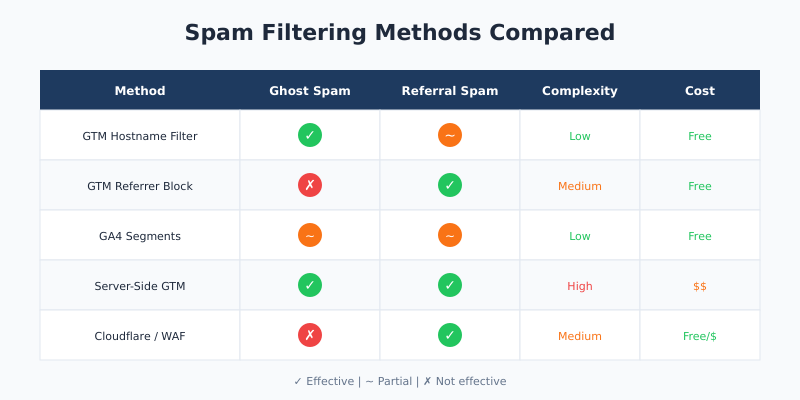
Filtering existing spam is reactive. These practices help reduce spam before it becomes a problem:
| Prevention Method | Effectiveness | Complexity |
|---|---|---|
| GTM hostname filtering | High for ghost spam | Low |
| Server-side tagging | Very high | High |
| Cloudflare/WAF | High for crawler spam | Medium |
| Regular monitoring | Medium (enables quick response) | Low |
| Bot detection services | Very high | Medium (cost involved) |
I recommend implementing GTM hostname filtering as a baseline — it takes 15 minutes and blocks the majority of ghost spam. Add other methods based on the severity of your spam problem.
Common Mistakes to Avoid
After cleaning up spam for dozens of clients, I’ve seen these mistakes repeatedly:
- Using “Unwanted Referrals” for spam — It doesn’t remove spam, just hides the source
- Trying to delete historical data — GA4 doesn’t allow this; focus on filtering future data and using segments
- Over-filtering legitimate traffic — Be precise with your rules; blocking entire countries or broad IP ranges can exclude real users
- Setting filters to “Testing” and forgetting — Data filters in GA4 default to testing mode; you must activate them
- Ignoring the problem — Spam doesn’t fix itself; it typically gets worse over time
Continue Learning
Explore more guides on analytics data quality:
- Event Tracking Basics — understand how GA4 collects data in the first place
- How to add GA4 tracking code — ensure your basic setup is correct
- Client-side vs server-side tagging — learn how server-side setups improve data quality
Bottom Line
GA4 spam traffic is a frustrating reality, but it’s manageable. Start with GTM hostname filtering to block ghost spam — it’s the highest-impact, lowest-effort solution. Add referrer blocking for persistent crawler spam. Use segments and Looker Studio filters to get clean numbers from historical data.
The key is acting before spam corrupts your data beyond usefulness. Check your traffic sources monthly. When you spot something suspicious, filter it immediately. Clean data isn’t a one-time achievement — it’s an ongoing practice.
If your spam problem is severe or you’re seeing sophisticated bot traffic, consider server-side tagging or dedicated bot detection services. The investment pays off in data you can actually trust.

Leave a Reply