
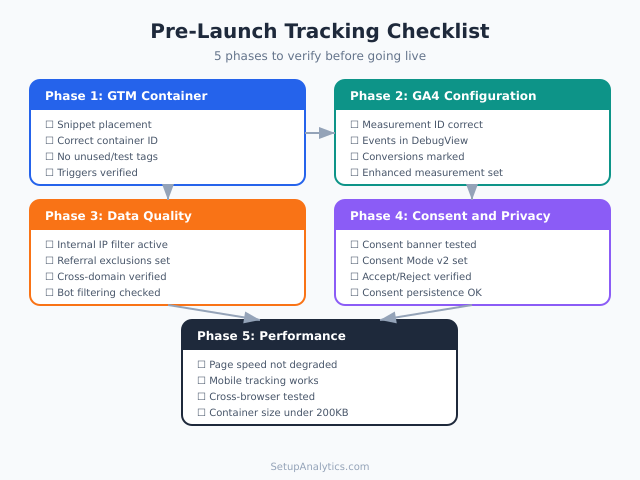
Launching a website without verifying your analytics setup is like opening a store and forgetting to turn on the cash register. Everything looks fine until you check the numbers — and realize you’ve been collecting garbage data, missing conversions, or tracking nothing at all. A proper pre-launch tracking checklist prevents these blind spots before they cost you weeks of lost data.
I’ve seen launches go wrong in every way imaginable: GA4 measurement IDs pointing to the wrong property, GTM containers stuck in an old staging version, consent banners blocking all tracking, and ecommerce events sending test data to production. Each one of these is preventable with a systematic check.
This guide covers everything you need to verify before going live. If you want a personalized, interactive version, our Tracking QA Checklist Generator creates a checklist tailored to your exact setup — with progress tracking and exportable results.
Why Pre-Launch Verification Matters
Data gaps created during launch are permanent. GA4 doesn’t backfill data, and it doesn’t retroactively fix misconfigured events. If your purchase event fires incorrectly for the first two weeks after launch, those two weeks of conversion data are gone forever. No amount of post-launch debugging can recover them.
The stakes are highest at launch because that’s typically when you get the most attention. Marketing campaigns drive traffic to the new site, press coverage brings curious visitors, and stakeholders watch the dashboards closely. If your tracking isn’t right from day one, you’re making decisions based on bad data during the most critical period.
Additionally, some tracking issues only appear in production. Staging environments often lack real user behavior patterns, third-party scripts, and actual consent banner interactions. A tracking setup that works perfectly in staging can break in unexpected ways once real users interact with it.
Phase 1: GTM Container Verification
Google Tag Manager is the foundation of most modern tracking setups. If the container has issues, everything downstream is affected.
Container Installation Check
- Verify GTM snippet placement — The container snippet must appear in both
<head>(main snippet) and<body>(noscript fallback). Missing either one causes issues. - Confirm the correct container ID — Compare the ID in your page source with the GTM dashboard. Staging containers sometimes get deployed to production by accident.
- Check for multiple GTM installations — Some sites end up with GTM installed twice (via a plugin and manually). This causes double-firing of all tags.
- Verify the dataLayer initialization — The
window.dataLayer = window.dataLayer || [];line should appear before the GTM snippet.
For a deeper dive into GTM verification, our guide on checking if your GTM is working properly covers the full debugging process.
Tag Audit
Before launching, export your container JSON and run it through an audit. Our GTM Container Linter automates this process, but you should also manually verify these critical items:
| Check | What to Look For | Risk if Missed |
|---|---|---|
| Unused tags | Tags with no triggers attached | Container bloat, confusion |
| Test tags | Tags named “test,” “debug,” or “temp” | Unwanted data in production |
| Paused tags | Tags that should be active but aren’t | Missing tracking data |
| Duplicate tags | Multiple tags with same config | Inflated metrics |
| Naming consistency | Tags following a clear convention | Maintenance headaches |
If your tags don’t follow a clear structure, now is the time to fix that. Consistent naming conventions make future audits dramatically easier.
Trigger Verification
Triggers determine when tags fire. Incorrect triggers are responsible for most “tracking isn’t working” issues after launch.
- Review “All Pages” triggers — Only configuration tags and global tracking (like pageview) should use this trigger. Everything else needs specific conditions.
- Test custom event triggers — Fire each custom event manually and verify the corresponding tags activate in GTM Preview mode.
- Check URL-based triggers — If triggers use URL matching, verify they work with the production domain (not staging URLs).
- Verify form triggers — Form submission triggers are notoriously unreliable across different form plugins. Test every form on the production site.

Phase 2: GA4 Configuration
With the container verified, focus on the GA4 setup itself. These checks ensure data flows correctly from your site to the GA4 property.
Measurement ID and Data Stream
- Confirm the Measurement ID — Your Google Tag should reference the production GA4 Measurement ID (starts with
G-), not a staging or testing property. - Verify enhanced measurement — Check which enhanced measurement events are enabled (page views, scrolls, outbound clicks, site search, file downloads). Disable any that conflict with custom implementations.
- Check data stream settings — Verify the stream URL matches your production domain. If you migrated from a staging URL, update it.
Event Tracking Verification
Open GA4’s DebugView (Admin → DebugView) and walk through every tracked user action on your site. For each event, verify:
- The event name appears in DebugView
- All expected parameters are present and correctly formatted
- Parameter values contain real data (not placeholder text)
- No duplicate events fire for a single action
For ecommerce sites, this step is critical. Every event in the purchase funnel — view_item, add_to_cart, begin_checkout, purchase — needs individual verification. Our Ecommerce Events Builder provides a reference for the correct event structure if you need to cross-check your implementation.
Understanding event tracking fundamentals is essential for this phase. Make sure your team knows the difference between automatically collected events, enhanced measurement events, and custom events.

Conversions and Key Events
| Check | How to Verify |
|---|---|
| Key events marked correctly | Admin → Events → verify toggle for each conversion event |
| Conversion counting method | Once per event vs. once per session — match your business model |
| Conversion value | Verify currency and value parameters pass correctly |
| Cross-platform consistency | Same conversions tracked in GA4 and ad platforms |
Phase 3: Data Quality Checks
Even when tracking fires correctly, the data quality might not be reliable. These checks catch issues that only appear when you look at the actual collected data.
Data Filters
- Internal traffic filter — Create and activate a data filter that excludes your team’s IP addresses. Without this, your own browsing inflates all metrics. Use regex patterns if you have multiple office IPs.
- Developer traffic filter — If your development team accesses the production site for testing, their traffic needs filtering too. Consider using a custom dimension triggered by a URL parameter.
- Bot filtering — GA4 automatically filters known bots, but custom bot traffic (scrapers, monitoring tools) might still get through. Review your traffic sources in the first few days after launch for anomalies.
For a comprehensive guide to identifying and blocking unwanted traffic, our article on GA4 spam traffic detection covers every method available.
Referral Exclusions
If your checkout process involves third-party domains (payment processors, authentication providers), add them to your referral exclusion list. Without this, GA4 starts a new session when users return from the payment page, breaking your conversion attribution.
Common domains to exclude:
- Payment gateways (Stripe, PayPal, Square)
- Authentication providers (Auth0, Okta)
- Third-party checkout platforms
- Your own subdomains if they have separate tracking
Cross-Domain Tracking
If your user journey spans multiple domains, verify that cross-domain measurement is configured correctly. Test by navigating from one domain to another and confirming that the _gl parameter appears in the URL and that GA4 maintains the same session.
Phase 4: Consent and Privacy
Privacy compliance is not optional. Getting this wrong can result in legal liability, and it also affects data quality because consent mode determines which tags fire for which users.
Consent Banner Verification
- Test the banner appearance — Verify it appears for first-time visitors and doesn’t show again after consent is given.
- Test consent choices — Click “Accept All,” “Reject All,” and customize individual preferences. Verify that tags fire (or don’t fire) accordingly.
- Check consent persistence — Close the browser, reopen, and verify consent preferences are remembered.
- Test across devices — Mobile browsers sometimes handle consent banners differently than desktop.
Google Consent Mode
If you’ve implemented Google Consent Mode v2, verify these settings:
ad_storage— Controls advertising cookies (Google Ads, Floodlight)analytics_storage— Controls GA4 cookiesad_user_data— Required for EU user data sent to Googlead_personalization— Controls remarketing signals
Test that default consent state is “denied” for EU visitors and that consent updates correctly when users interact with the banner.
Phase 5: Performance and Technical
Tracking scripts affect page performance. This phase ensures your setup doesn’t slow down the site while still collecting complete data.
Page Load Impact
- GTM container size — Containers over 200KB indicate too many tags or overly complex custom HTML. Clean up before launch.
- Tag firing count — Use GTM Preview mode to count how many tags fire on a typical page. More than 15-20 tags suggest optimization is needed.
- Third-party script loading — Verify that marketing pixels and analytics scripts don’t block page rendering. They should load asynchronously.
Browser Compatibility
Test your tracking in multiple browsers. Some tracking methods behave differently across Chrome, Safari, Firefox, and Edge — especially regarding cookie handling and cookieless tracking strategies. Safari’s Intelligent Tracking Prevention (ITP) is particularly aggressive and may affect your GA4 cookie duration.
Mobile Verification
At least 50% of web traffic comes from mobile devices. Test every tracked interaction on actual mobile devices (not just browser DevTools emulation):
- Touch events vs click events — ensure triggers work for both
- Scroll tracking — mobile scroll behavior differs from desktop
- Form submissions — mobile keyboards and autocomplete can affect form tracking
- Page speed — GTM’s impact is more noticeable on slower mobile connections
The Complete Pre-Launch Checklist
Here’s the full checklist condensed into a reference you can print or save:
| Phase | Check | Status |
|---|---|---|
| GTM | Snippet in head + body | |
| GTM | Correct container ID (production) | |
| GTM | No duplicate GTM installations | |
| GTM | dataLayer initialized before snippet | |
| GTM | No unused/test/paused tags | |
| GTM | Triggers use production URLs | |
| GA4 | Correct Measurement ID | |
| GA4 | Enhanced measurement configured | |
| GA4 | All events verified in DebugView | |
| GA4 | Conversions marked and tested | |
| Data | Internal traffic filter active | |
| Data | Referral exclusions configured | |
| Data | Cross-domain tracking verified | |
| Privacy | Consent banner works correctly | |
| Privacy | Consent Mode v2 configured | |
| Tech | Page speed not degraded | |
| Tech | Mobile tracking verified | |
| Tech | Cross-browser testing done |
For an interactive version of this checklist with automatic progress tracking, our Tracking QA Checklist Generator lets you customize it for your specific setup and export the results.
What to Monitor After Launch
Verification doesn’t stop at launch. Monitor these metrics daily for the first two weeks:
- Realtime report — Verify active users appear within minutes of launch
- Event counts — Compare expected vs actual event volumes
- Conversion rates — Watch for rates that are suspiciously high (duplicate tracking) or zero (broken tracking)
- Traffic sources — Check for self-referrals (cross-domain issue) or unexpected direct traffic spikes
- User properties — Verify custom dimensions and user properties populate correctly
According to Google’s data processing documentation, GA4 can take 24-48 hours to fully process data. Don’t panic if standard reports look incomplete on day one — check Realtime and DebugView for immediate confirmation.
Continue Learning
A successful launch is just the beginning. Here are resources to maintain and improve your tracking over time:
- Tracking QA Checklist Generator — Create a personalized, interactive checklist for your specific tracking setup
- GTM Container Linter — Run automated audits on your container after every major change
- 10 Common GTM Mistakes — Know the most frequent errors so you can prevent them proactively
- How to Check If Your GTM Is Working — Ongoing verification techniques for your GTM setup
Bottom Line
A pre-launch tracking checklist isn’t bureaucracy — it’s insurance. The 30 minutes you spend verifying your setup before launch prevents weeks of bad data, missed conversions, and painful post-launch debugging. Every check in this guide exists because I’ve seen the consequences of skipping it.
Start with the GTM container verification, work through GA4 configuration, validate data quality, confirm privacy compliance, and test performance. If even one phase reveals an issue, fix it before going live. Clean data from day one is worth more than any amount of retroactive cleanup.

Leave a Reply